

StarRailAssistant User Guide
Schedule StarRailAssistant in AUTO-MAS
What is SRA?
StarRailAssistant is a third-party tool for Honkai: Star Rail. It can handle repetitive tasks such as daily automation and Divergent Universe.
For more information, see:



Install SRA
- Download the archive from
SRA Website
,SRA Repository
, orMirrorChyan
. - Extract the SRA archive to any folder.
Don't Unpack Into a Non-English Path
Keep SRA, and any other general script, out of folders with non-ASCII characters in the name, such as D:\脚本\. Those paths cause failures that are hard to diagnose. Use a plain English path like D:\SRA.
Configure the Script Instance
SRA can manage multiple accounts on its own, and so can AUTO-MAS. That gives you two routes. Pick one — don't set up both:
| What manages the accounts | Good if | |
|---|---|---|
| Method 1 | AUTO-MAS | You want per-account results inside AUTO-MAS, and want to start or stop individual accounts |
| Method 2 | SRA | You already have several accounts configured in SRA and don't want to redo them |
See the comparison diagram at the bottom of this page for how the two differ.
Method 1: Use AUTO-MAS Multi-User
- Open AUTO-MAS, go to Script Management, click New Script, and select General Script to add a script instance management page.

- In the popup, select Create from template, then click OK.

- In the new window, find and select the StarRailAssistant template for SRA v2.14 and above, then click Use this template.
- The script configuration opens shortly:
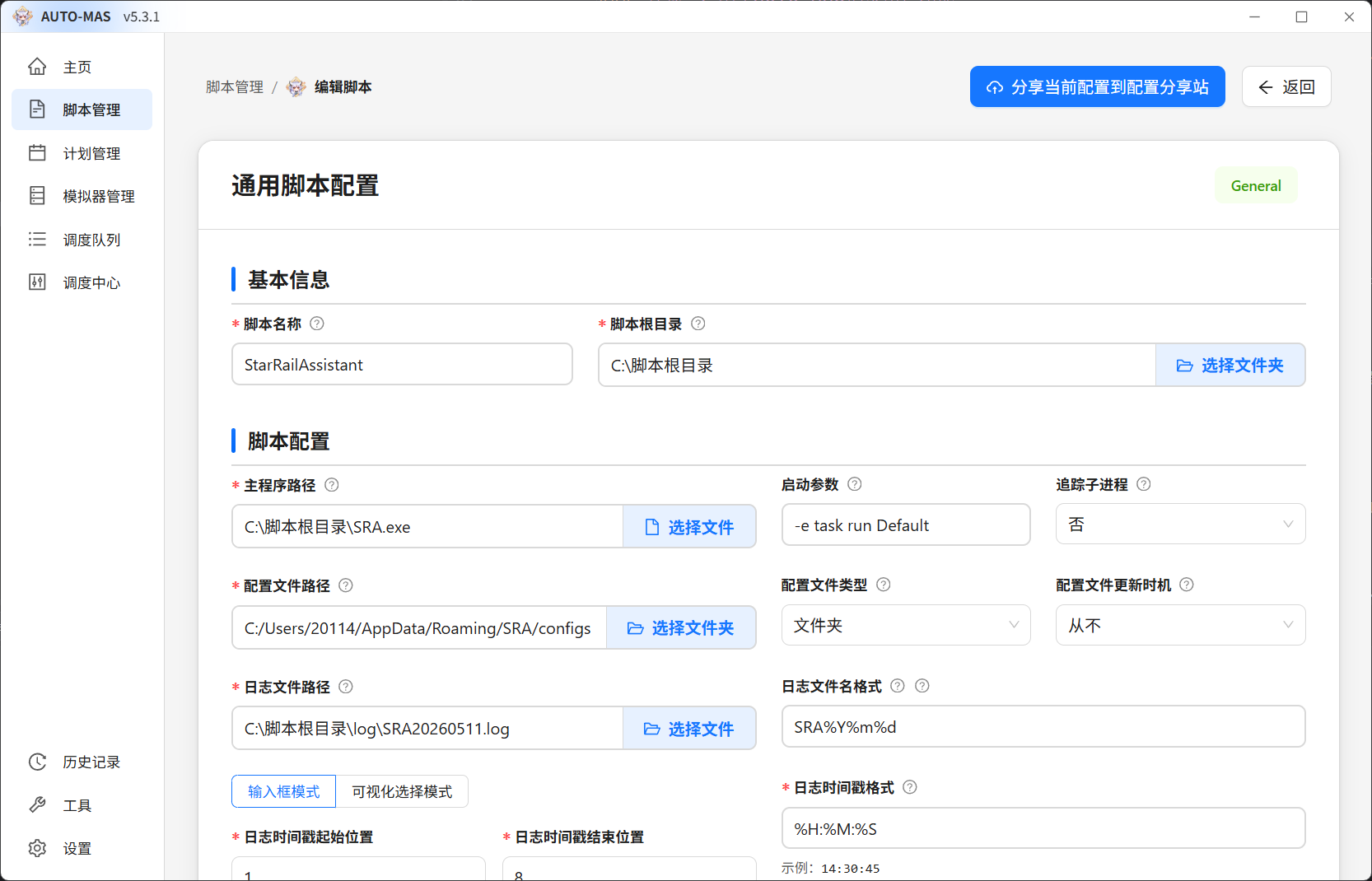
- In the opened script configuration, click Select folder for Script root directory, then open the SRA software directory.
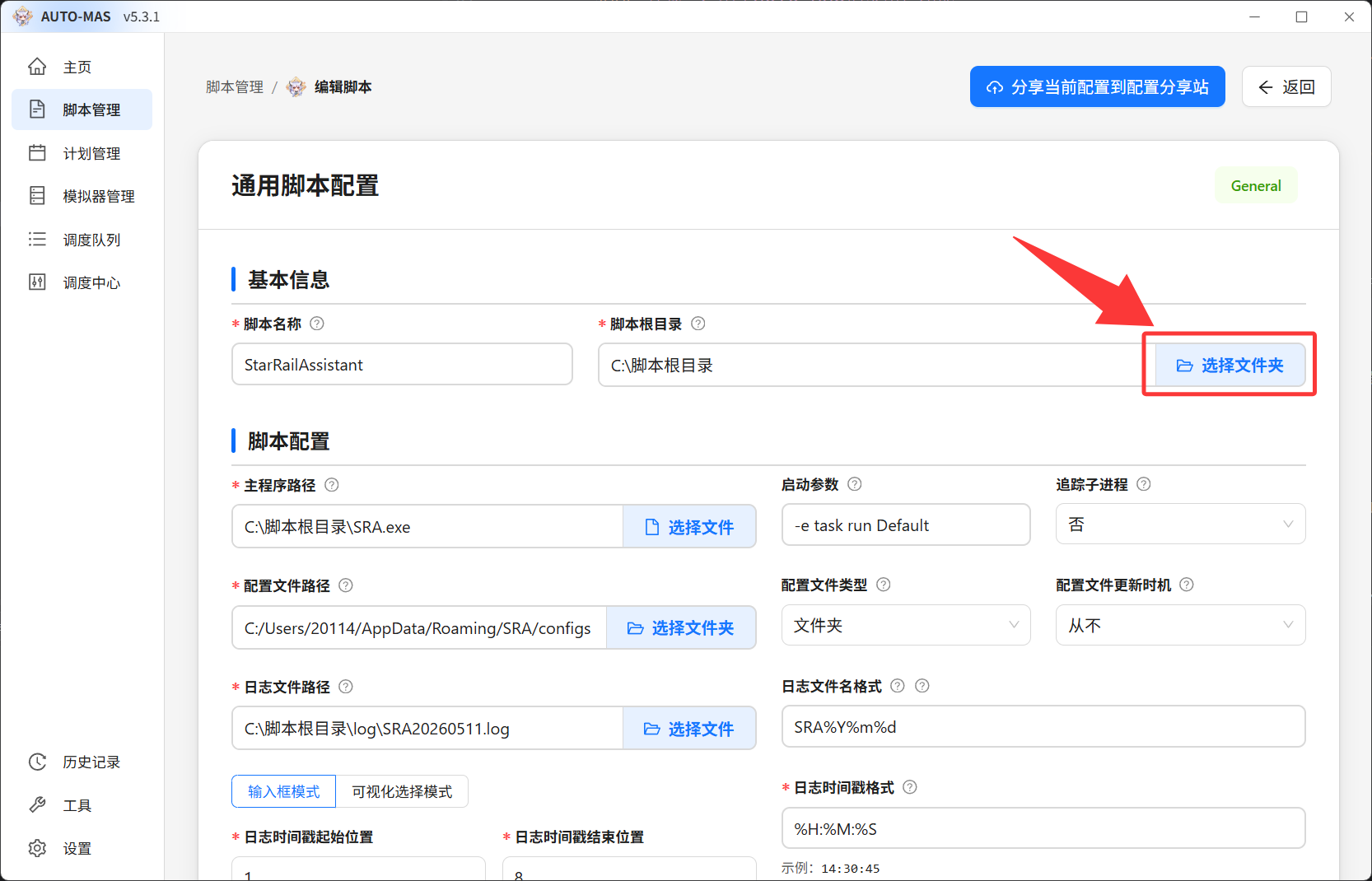
Don't Edit the Paths Below by Hand
Once you pick the script root directory, the paths under script configuration are filled in automatically by the template. Leave them alone unless you know what each one does. Wrong values break automation in confusing ways.
- After selecting the SRA directory, the script configuration paths are corrected automatically and need no manual selection.
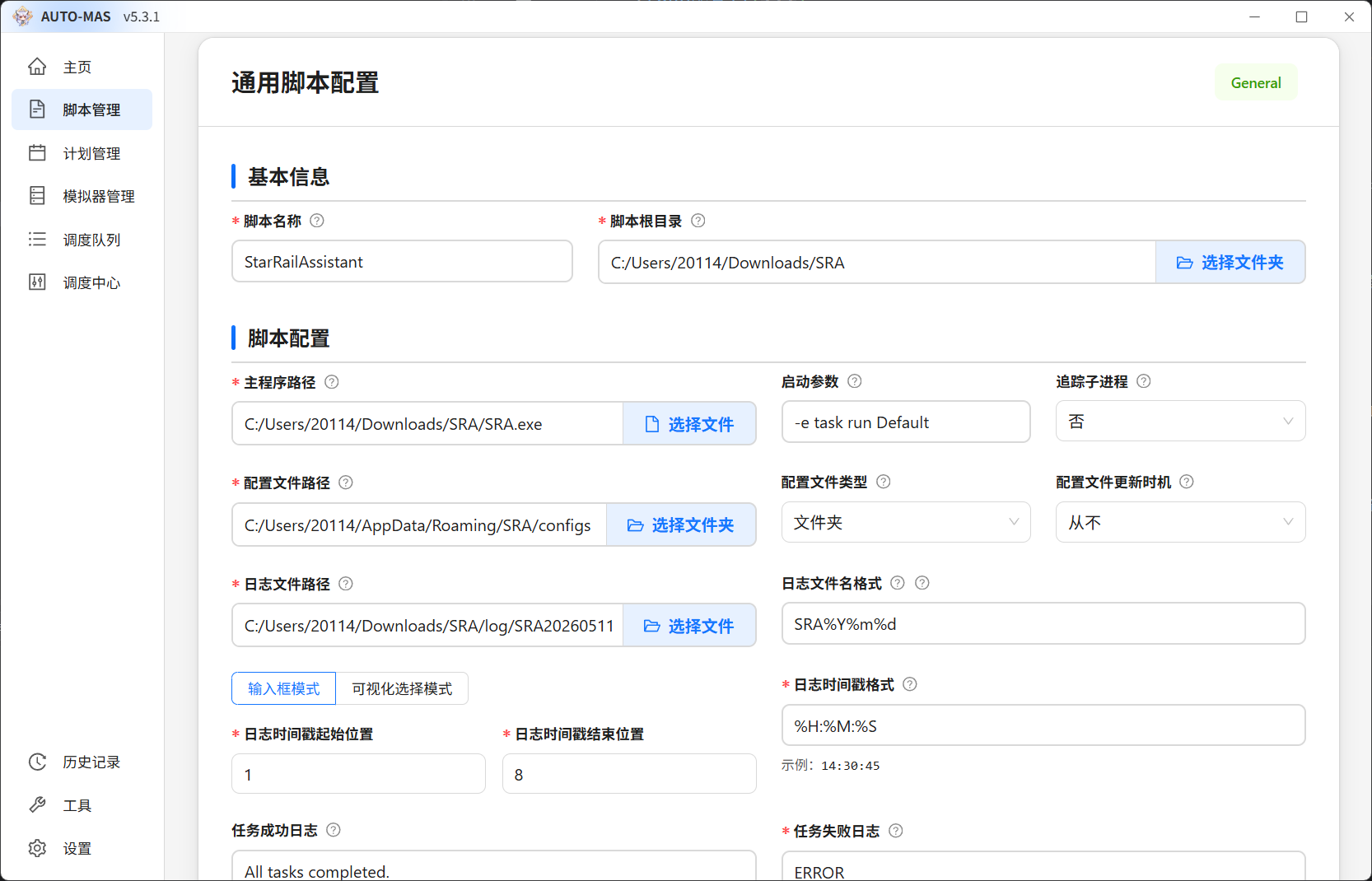
- SRA uses
C:\Users\YourName\AppData\Roaming\SRAas its default config directory, so you don't need to change the config file path field.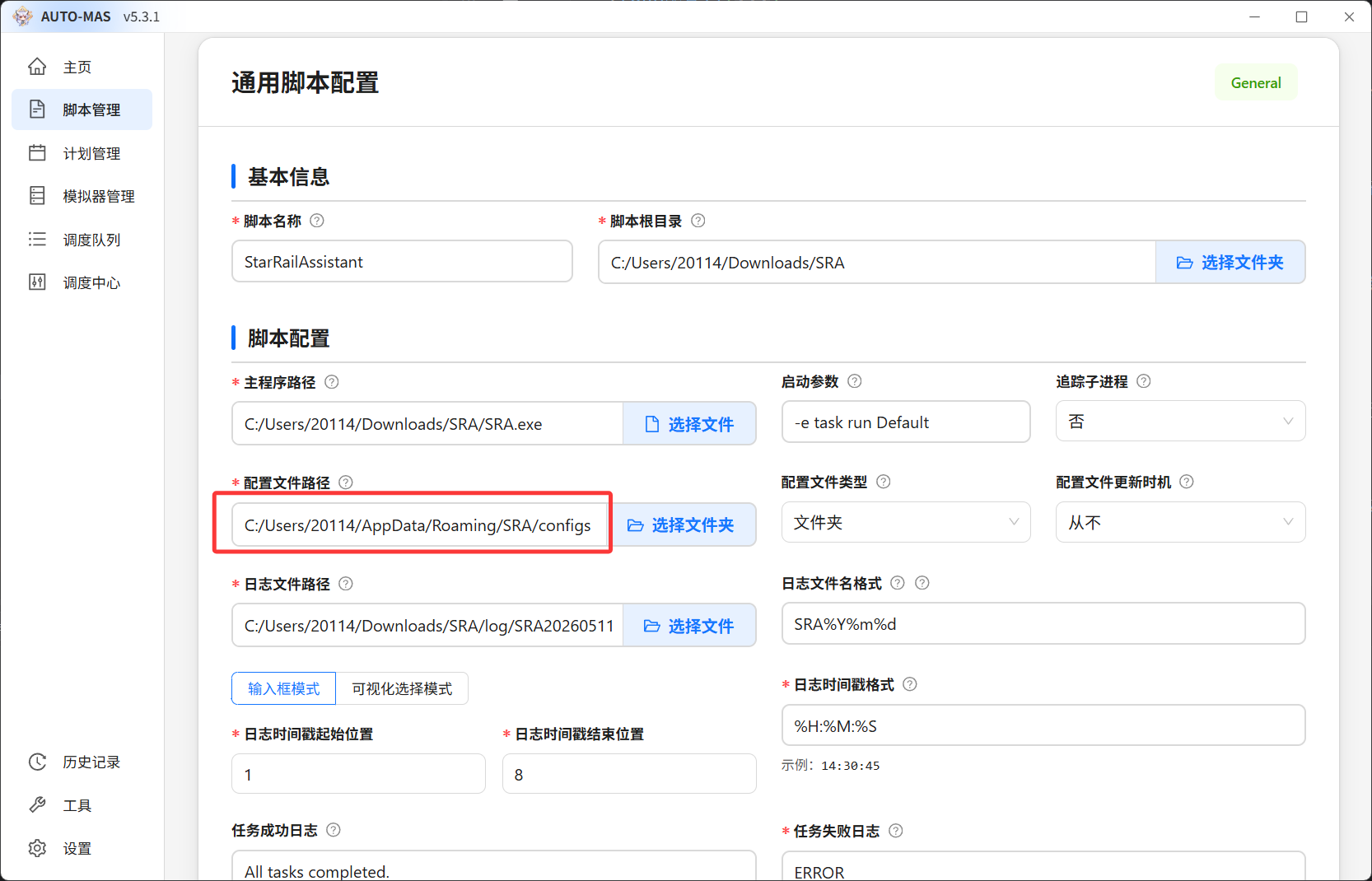
- The script configuration saves automatically. Leave the script configuration page.
- Click Add user and give the user a name in the username field — it's only a label. Then click General Configuration in the upper-right corner.
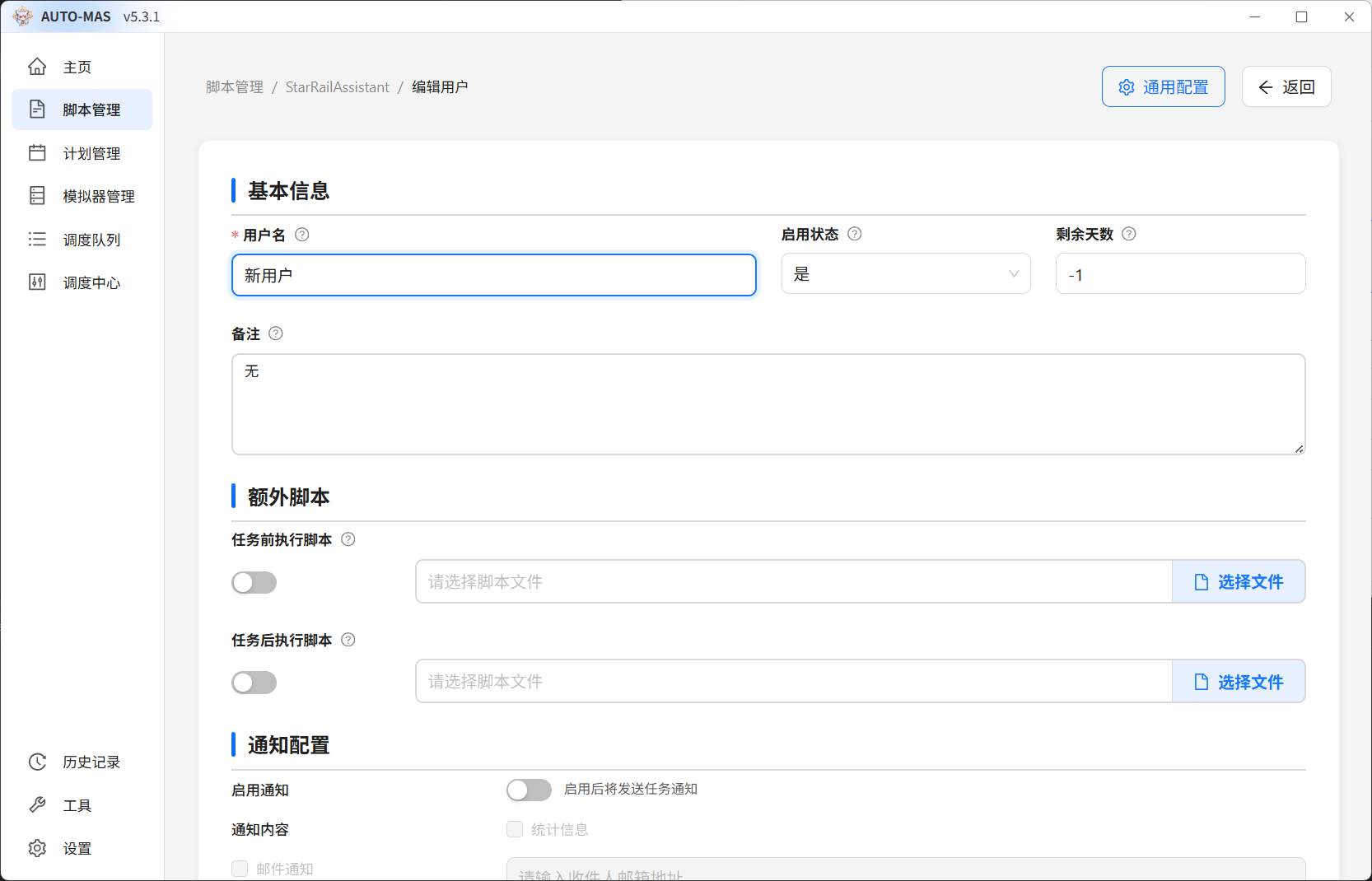
- This launches the SRA window, where you configure SRA itself.
Keep the Config File Named Default
When you use AUTO-MAS multi-user, do not rename the config file. Leave it as the default Default.
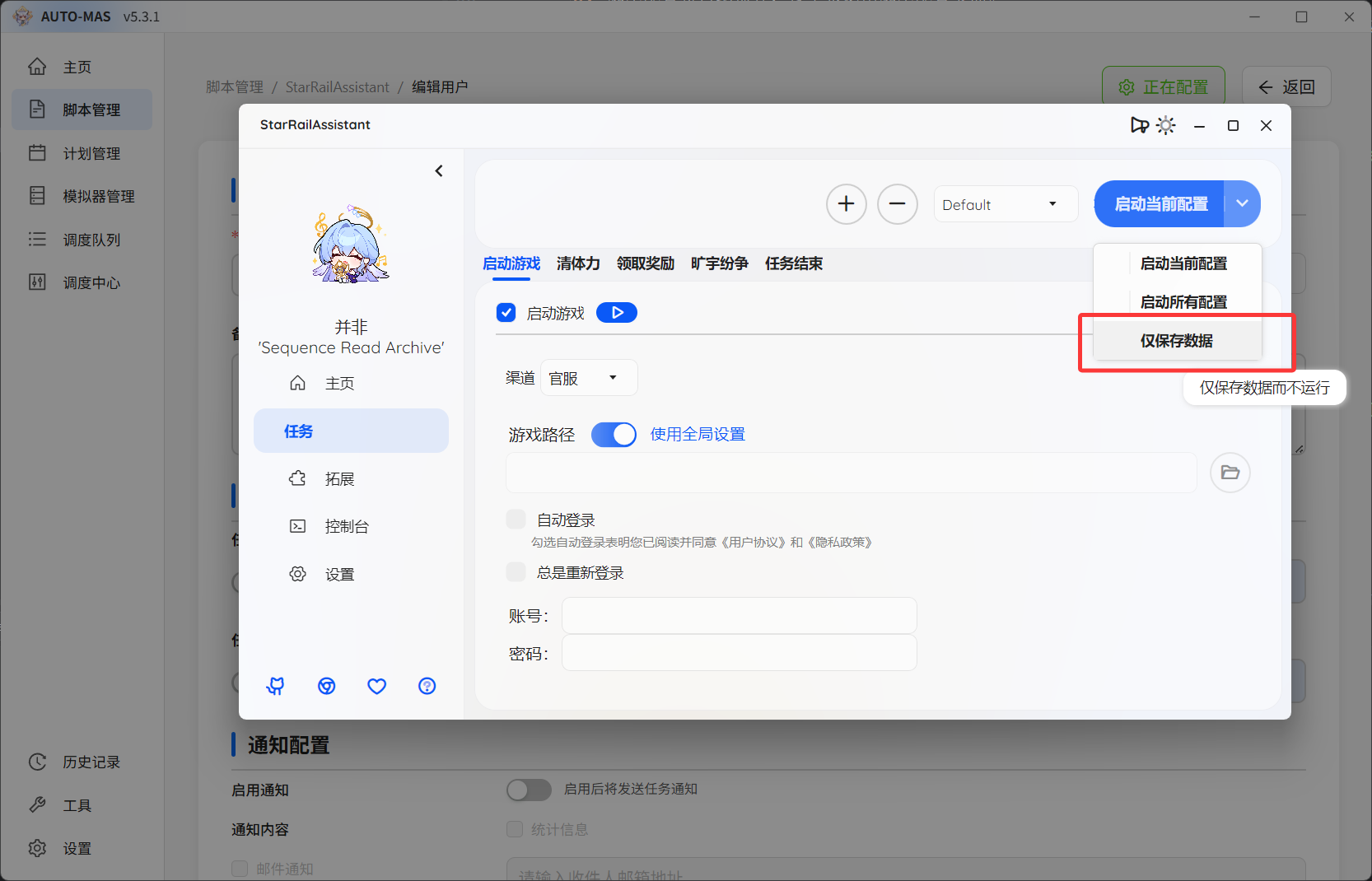
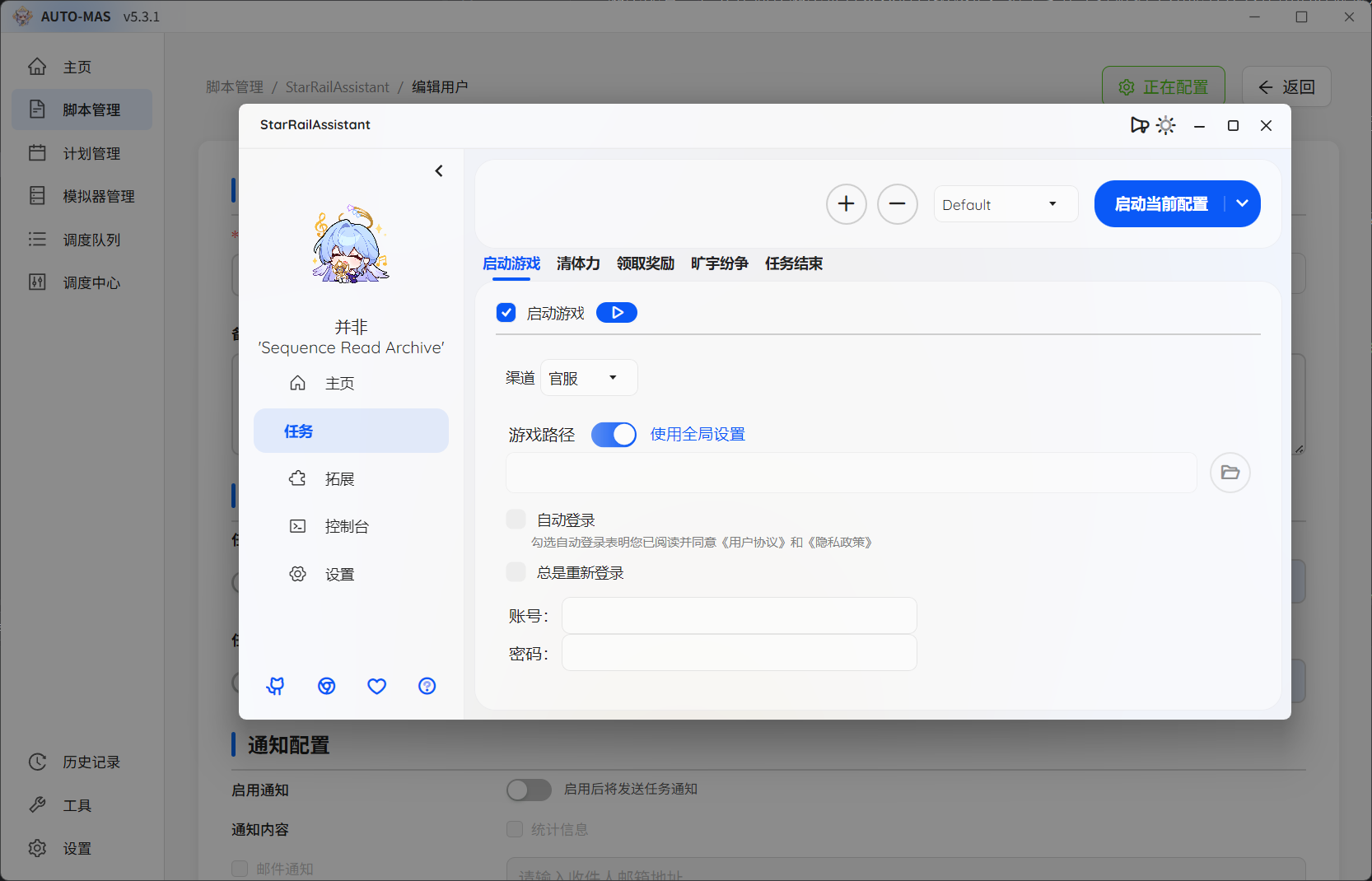 11. When you're done, click the arrow to the right of the start button on the SRA home page to expand the launch options, then select Save config only.
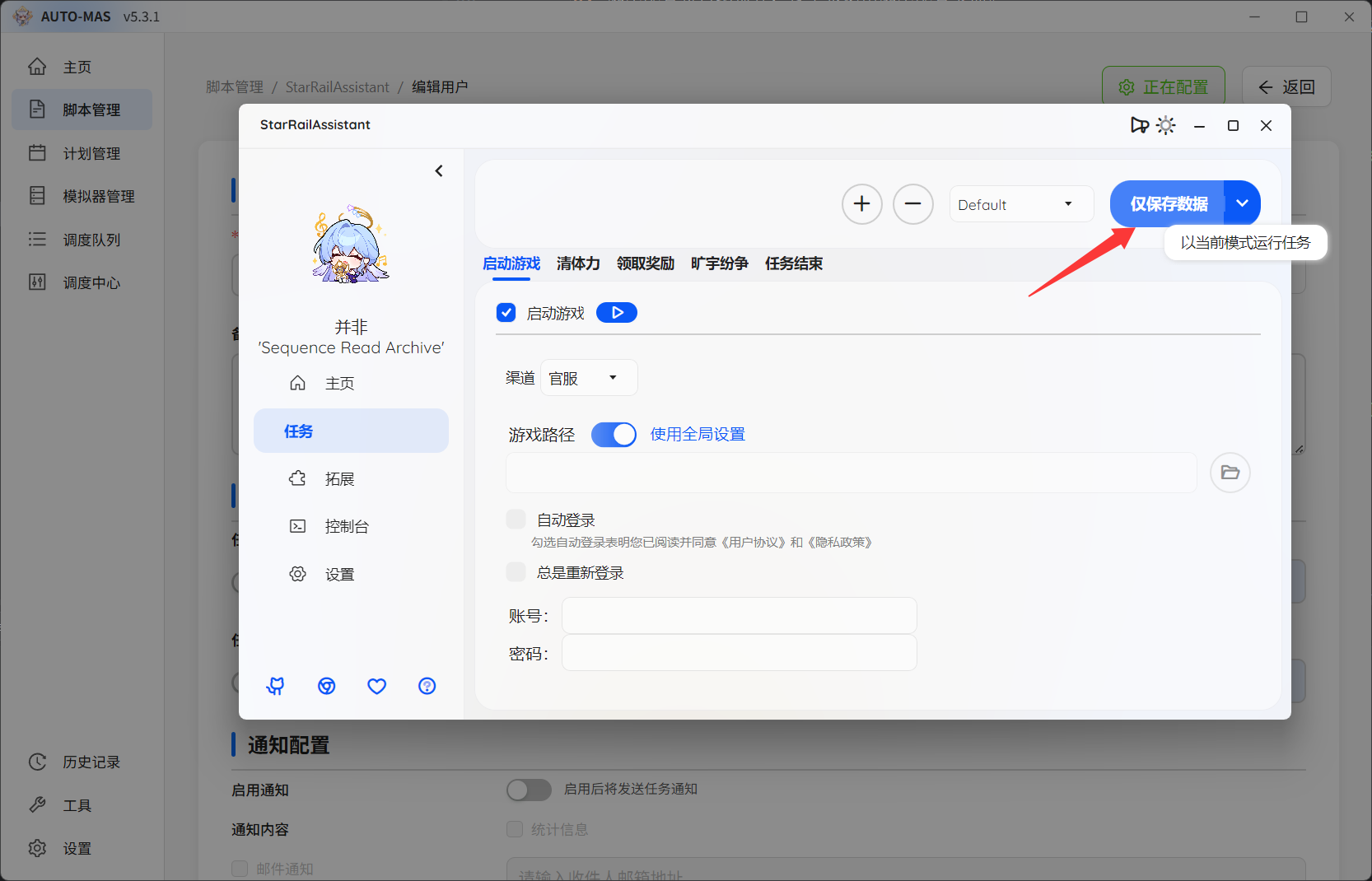
  12. After clicking Save config only, close the SRA window and click the save configuration button in AUTO-MAS. That completes one user.
  13. To add more users, repeat steps 9 to 12. You may notice that SRA loads the previous config file when it opens at step 10 — that's normal. Just change the settings for the new user.
Same Rule for Every User
Keep the config file named Default for all of them.
Method 2: Use SRA Multi-User
Steps 1 to 7 are the same as Method 1. From step 8 on, they differ.
- Change launch arguments to
-e task run. This makes SRA run every config it has saved on startup, instead of just one.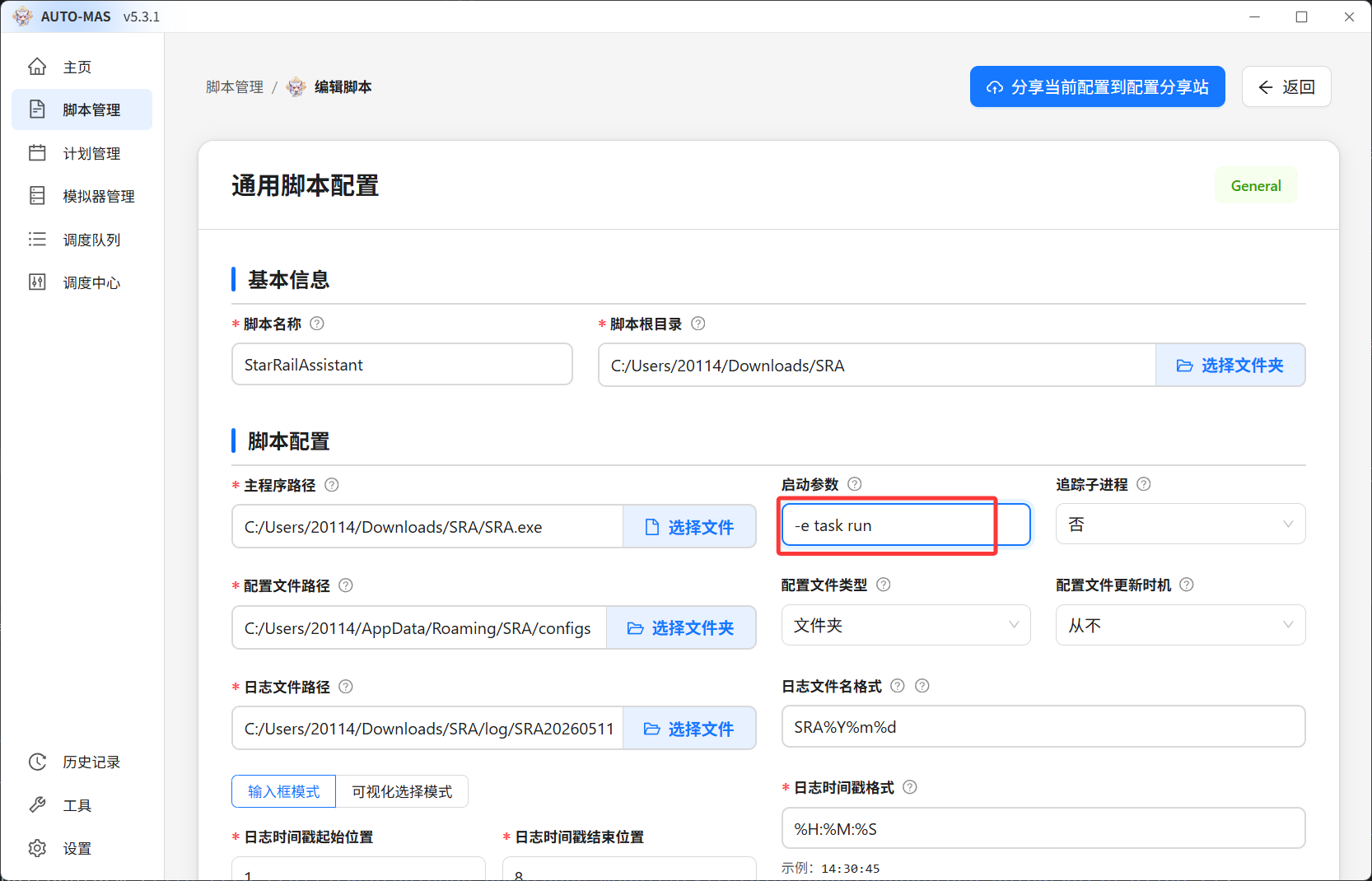
- The configuration saves automatically. Leave the script configuration page.
- Click Add user and give the user a name in the username field — it's only a label. Then click General Configuration in the upper-right corner.
- This launches the SRA window, where you configure SRA itself. You can use the
Defaultconfig file as-is. If you have several accounts, create the new configs inside SRA and switch to each one to edit it.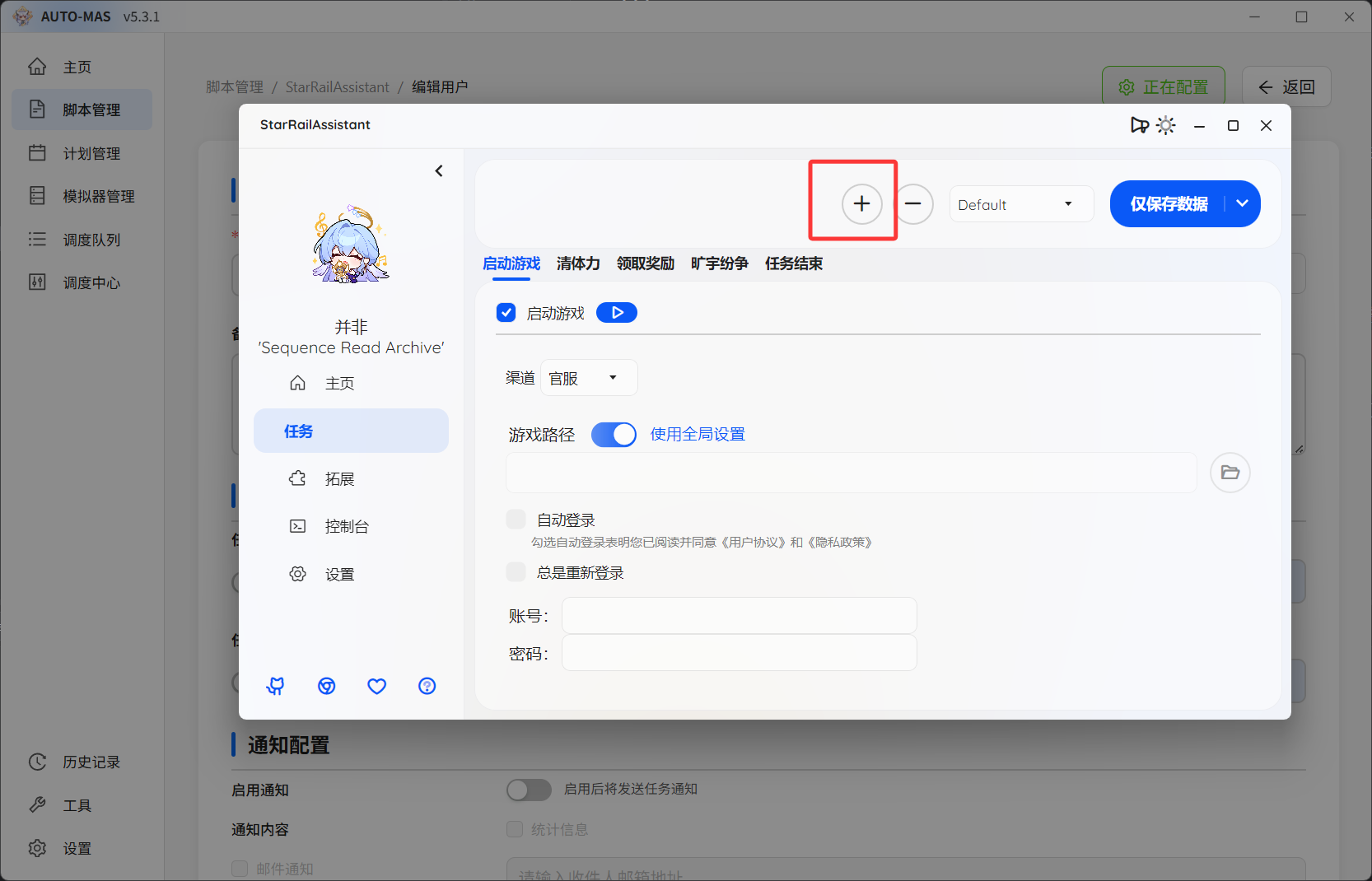
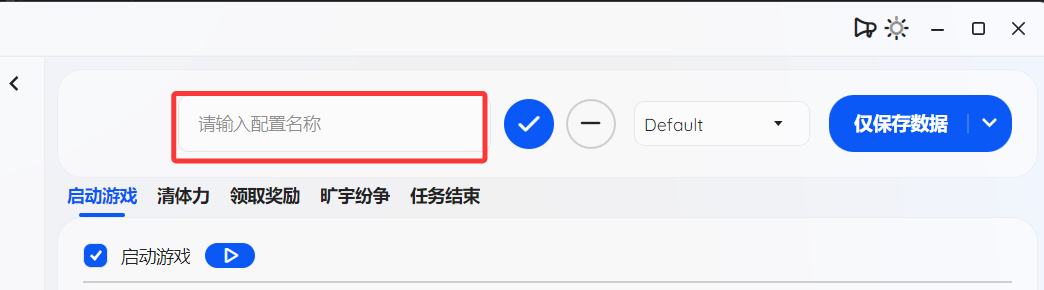
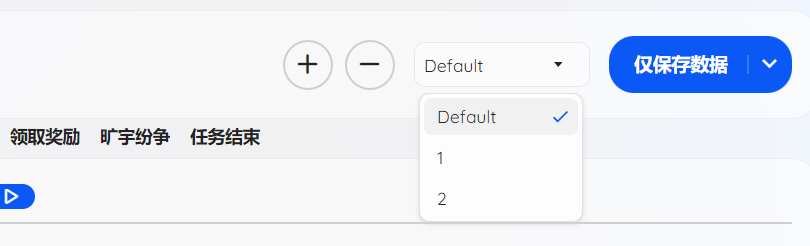
- After finishing each config, click the arrow to the right of the start button on the SRA control panel to expand the launch options, then select Save config only.
- Once every config is saved, close the SRA window and click the save configuration button in AUTO-MAS. All users are now configured.
Differences
One diagram covers it:
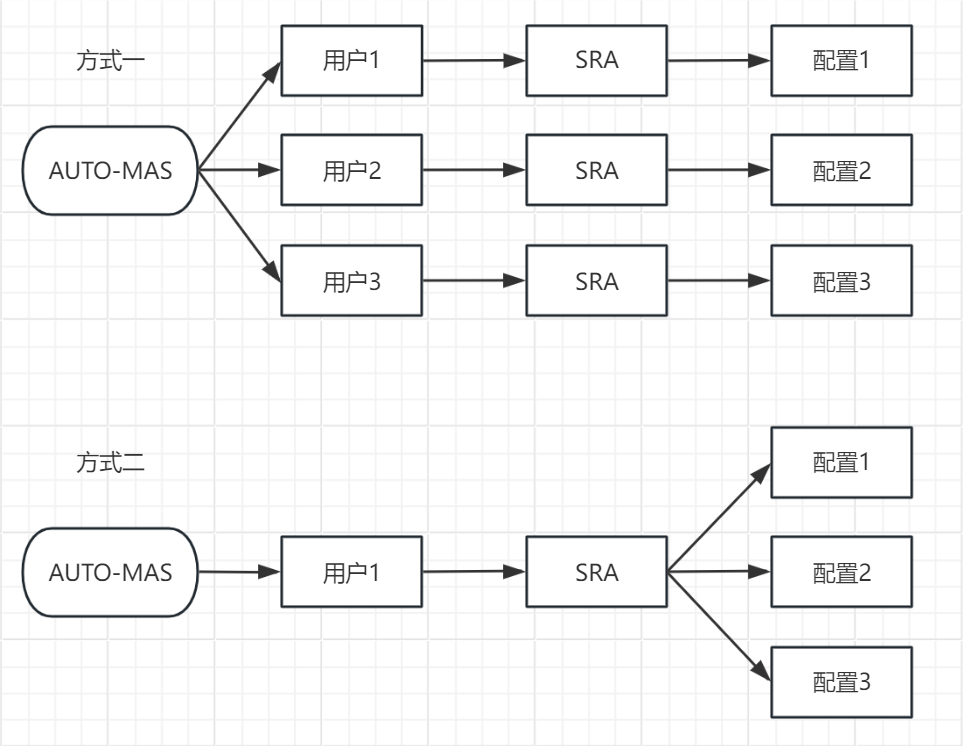
In short: with Method 1, AUTO-MAS swaps in one user's config at a time and launches SRA for each round. With Method 2, AUTO-MAS launches SRA once and SRA works through all of its own configs.