

Notifications
Get told when a run finishes or an account fails. AUTO-MAS can send that news over email, ServerChan, or a WeCom group bot.
Two Levels: Global and Per-User
Global notifications are configured in Settings > Notification Settings and cover every task. For most people this is the only one you need.
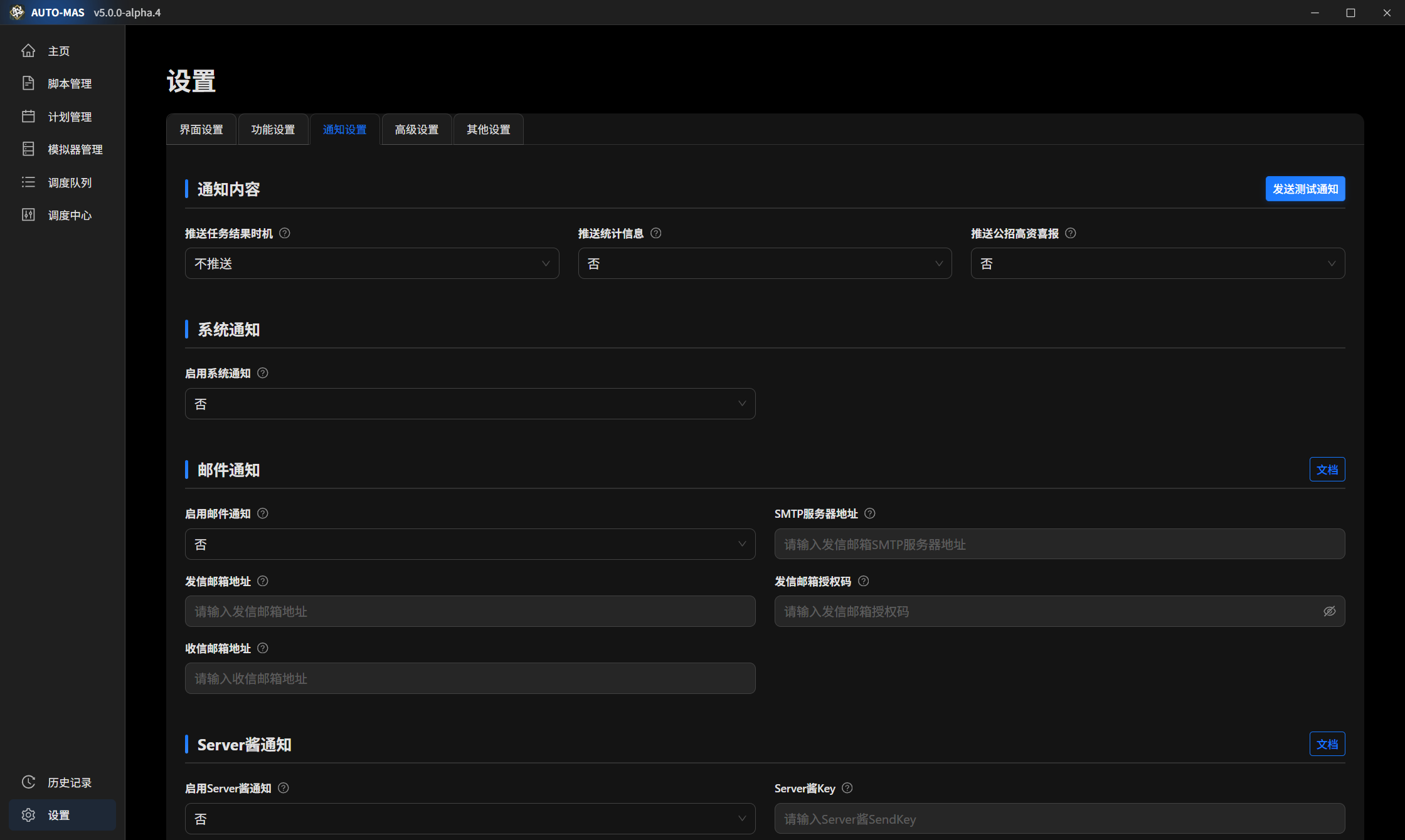
Per-user notifications are configured in User Configuration > Notification Settings and let you name a separate recipient for one account. Typical case: you run accounts for a friend and he wants his own results.
A Per-User Notification Adds a Copy, It Does Not Change the Recipient
Once a per-user notification is set, the global notification still goes to you, and an extra copy goes to the address that user specifies. It does not replace the global setting.
Email Notifications
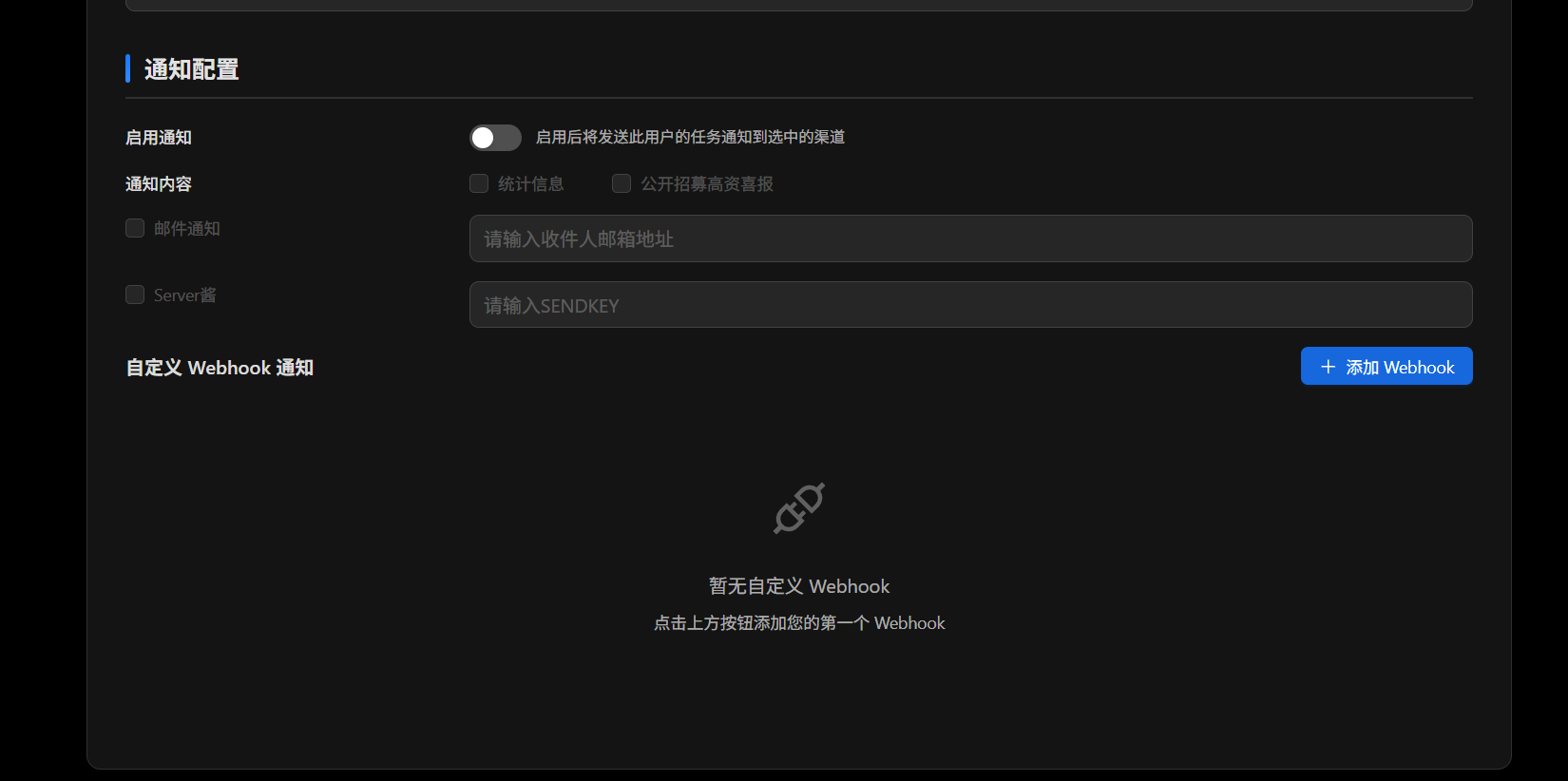
To receive notifications by email you need three things: an SMTP server address, a sending address, and an authorization code. Here is how to get each one.
SMTP Server Address
Find the provider of your sending address and copy the matching row.
| Email service provider | SMTP server address |
|---|---|
| QQ Mail | smtp.qq.com |
| 163 Mail | smtp.163.com |
| Gmail | smtp.gmail.com |
| Outlook/Hotmail | smtp-mail.outlook.com |
| Yahoo Mail | smtp.mail.yahoo.com |
If your email service is not listed, search its help center for "SMTP server address".
Get an Authorization Code
An authorization code is not your mailbox login password. It is a separate code your provider issues for third-party software, and you have to go and generate it yourself. Getting this wrong is the most common reason email notifications fail.
Providers name it differently: QQ Mail and 163 Mail call it an authorization code, while Gmail, Outlook, and Yahoo call it an app password. It is the same thing, and it goes in the same field.
Where each provider hides it:
- QQ Mail

QQ Mail official guide
- Log in to your QQ Mail Account and Security Center.
- Go to Account and Security > Security Settings > SMTP/IMAP Service, enable the service, and get the authorization code.
- 163 Mail

163 Mail official guide
- Log in to 163 Mail.
- Go to Settings > POP3/SMTP/IMAP, find IMAP/SMTP Service, and enable it.
- In the popup, click Continue enabling and follow the instructions to send an SMS from your phone.
- The popup generates an authorization password. That is the code you need.
- Gmail
- Log in to Gmail.
- Go to Settings > See all settings > Forwarding and POP/IMAP > IMAP access, then select Enable IMAP.
- Go to User > Manage your Google Account > Security > 2-Step Verification and enable 2-Step Verification.
- Go to 2-Step Verification > App passwords and create an app password. That is the code you need.
- Outlook/Hotmail
- Log in to your Outlook account.
- Go to My Account > Security and privacy > More security options.
- Create an app password under App passwords.
- Yahoo Mail
- Log in to your Yahoo account.
- Go to the account's Security settings.
- Find Generate app password or a similar option to create an app password.
One Mailbox Is Enough
The sending address and the recipient address can be the same. Mailing yourself works fine.
About the Authorization Code
- Do not share it with anyone, and rotate it now and then.
- Some providers show it only once, so save it as soon as you get it. Some expire, and notifications silently stop when they do, so replace it before then.
- It is stored encrypted on your machine, tied to your Windows account. After changing computers or reinstalling Windows, you have to enter it again.
ServerChan (Push to Your Phone)
ServerChan is a relay service that forwards messages to your phone. Enter the key it gives you into AUTO-MAS and your run results get pushed to your phone.

There Are Two Versions, Don't Mix Them Up
ServerChan released a new version in 2024, and the two are separate products:
- SCT = ServerChan Turbo, the older version. It supports many channels, including WeChat, DingTalk, and Feishu.
- SC3 = ServerChan³, the newer version. It only pushes to its own app.
Some of the settings below apply to just one version, so check before you fill them in.
SendKey (Required)
The SendKey is how ServerChan identifies you, and messages have nowhere to go without it. Get yours from the page for your version. Pick one platform, not both:
- SCT users:
SCT SendKey
- SC3 users:
SC3 SendKey
Channel Code (SCT Only)
To push messages to WeChat, DingTalk, and similar destinations, enter the matching numeric code. SC3 users skip this — SC3 only has app push.
| Channel | Code |
|---|---|
| Official Android app beta | 98 |
| WeCom app message | 66 |
| WeCom group bot | 1 |
| DingTalk group bot | 2 |
| Feishu group bot | 3 |
| Bark iOS | 8 |
| Test account | 0 |
| Custom | 88 |
| PushDeer | 18 |
| Fangtang service account | 9 |
No Spaces When You List Several Channels
- Correct:
1|0|9 - Incorrect:
1 | 0 | 9
A wrong format does not raise an error. It silently falls back to the default channel, so you may think your setting took effect when it did not.
Tag (SC3 Only)
Tags label your push messages so you can sort them in the app. SCT users skip this.
No Spaces Here Either
- Correct:
AUTO-MAS|Status - Incorrect:
AUTO-MAS | Status
Left empty or formatted wrong, messages simply arrive without tags. Pushing itself still works.
WeCom Group Bot (Push to WeChat)
Set It Up Once, Then Read Messages in WeChat
You do have to register WeCom, but that is a one-time step just to obtain a bot address. After that, messages arrive in your normal WeChat.
Register an enterprise account: open the
WeCom official website
on a computer, follow the instructions, then log in to the WeCom client with the WeChat account you bound.Create a group and add a bot: open the group chat, click the ... menu in the upper-right corner, and select Add group bot. Name and avatar are up to you. This works on desktop and mobile alike.
Get the Webhook URL:
- Desktop: right-click the bot in the group chat and select View profile.
- Mobile: group chat, ... menu in the upper-right corner, Group bot, then tap the bot.
Enter it in AUTO-MAS: paste the Webhook URL into Push WeCom bot notification. Done.