

General Scheduling
Start here: most people never configure this by hand
AUTO-MAS ships with a set of ready-made templates. Go to New general script > Create from template, pick a template, fill in one script path, and you are done.
March7thAssistant, SRC, zzzOD, M9A and other common scripts all have mature templates. Check the list before you build anything yourself.
Configuring from scratch means knowing your script
If your script is not in the template list, you have to write the monitoring rules yourself. That means knowing what its log looks like and how it starts up. If you are not familiar with it, import a config someone else has shared instead.
General scheduling is also usually less stable than a script AUTO-MAS supports directly. That is how the mechanism works, so go easy on the people who share configs.
How It Works
Understand these two things and you can diagnose most problems yourself.
Config Handling: Borrow and Return
AUTO-MAS does not parse the script's config format. It keeps the whole config instead. Before a task starts, it copies your saved config into the script's directory as-is. After the task ends, it puts the script's original config back.
So every user runs with its own config, and nothing you set by hand inside the script gets polluted.
Success and Failure: Watching the Log
AUTO-MAS cannot read the script's UI. It watches three things only: what text appears in the log, when the log was last written to, and whether the script process has exited.
Which rules apply depends on whether you filled in task success logs:
| You filled in a success keyword | You left the success keyword blank |
|---|---|
| The success keyword appears in the log -> success | The script exits on its own and no error keyword ever appeared -> success |
| The script exits but the success keyword never appeared -> failure | An error keyword appeared before the script exited -> failure |
Two more rules always apply:
- An error keyword appears before the success keyword -> failure
- The log goes untouched for longer than the auto-proxy timeout limit -> treated as a hang, timeout failure
Using MAA as an example: 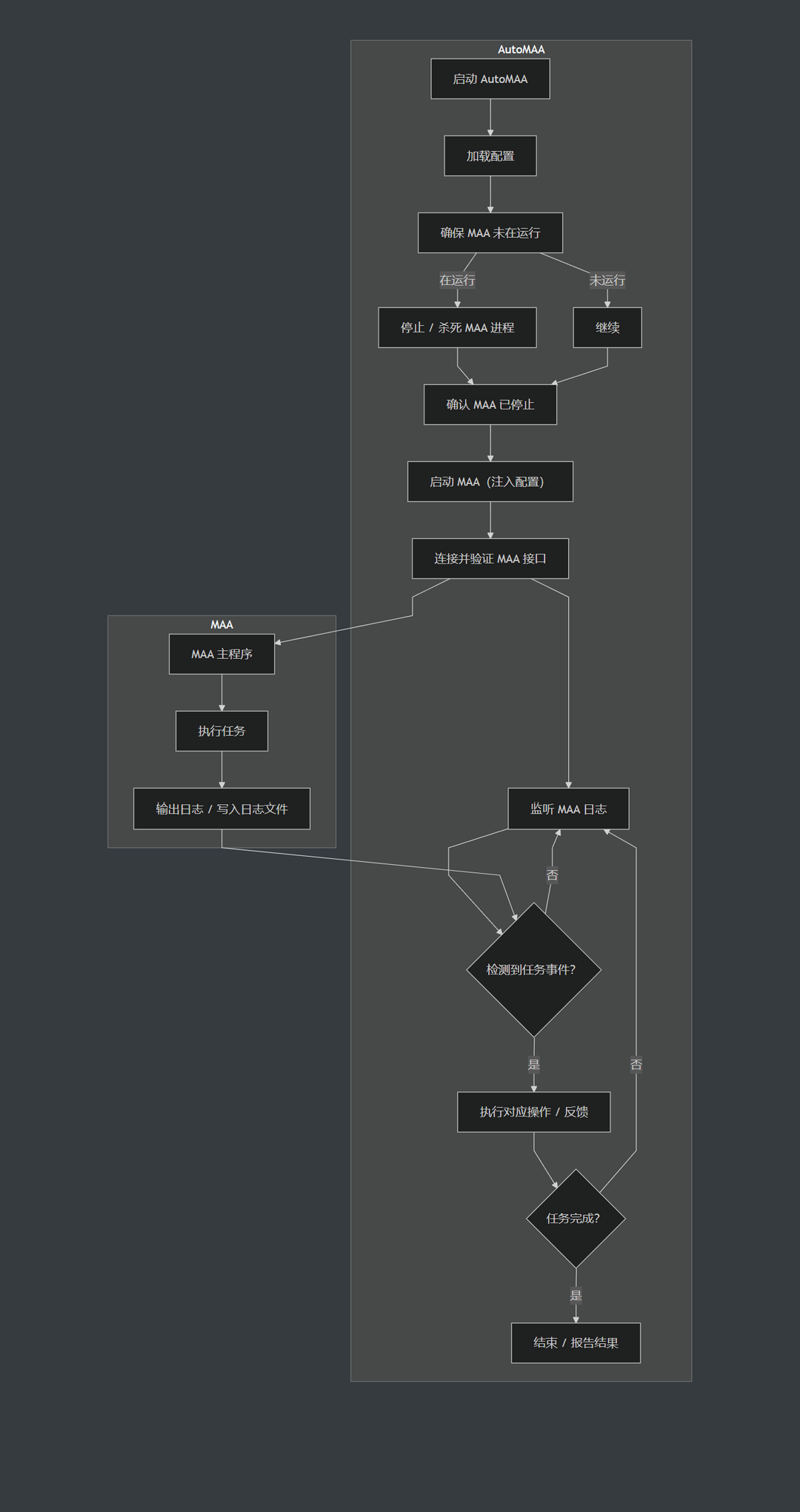
Script Settings
These settings decide how AUTO-MAS handles your script. Getting them right is what makes automation stable.
Script Root Directory
Pick the folder the script lives in. Fill this in first; the other paths depend on it.
If you move the script later, change this one setting and the paths below follow automatically. No need to reselect them one by one.
Script Path
Pick the script's main executable, the file you would normally double-click to start it.
- "The selected path is not under the script root directory": exactly what it says. Go back and check the script root directory.
- The script will not start: either the path or the launch arguments are wrong. Check
debug/AUTO-MAS.logfor the actual error.
Script Launch Arguments
Most scripts do not need this. Leave it empty and try that first.
Some scripts have no "start running as soon as it opens" option in their UI and can only do it through command-line arguments. Those are the ones that need this field.
How to find them: check the script's website or docs for a command line or CLI section, and copy the arguments that make it run a task on startup.
You only need the separators if your script is one of these two special cases:
- Configuring and running a task take different arguments -> separate the two sets with
|. Task arguments first, config arguments second. - Configuring and running a task use different executables -> put that executable's path relative to the
script pathin front of the arguments, separated by%.
The full format looks like this (leave out the parts you do not need):
{task executable}%{task arguments}|{config executable}%{config arguments}Track Script Child Processes
Leave this on the default. Only change it if something goes wrong.
Some scripts work like this: a launcher starts the main program, then the launcher exits. Watching only the launcher process would make AUTO-MAS think the script already finished. Turn this on for those scripts so child processes are watched too.
- The script closed but AUTO-MAS still thinks it is running -> turn this off.
- The script is still running but AUTO-MAS says it exited -> turn this on.
Script Config File Path
Pick the file or folder where the script stores its config.
How to find it: open the script directory and look for a file or folder with config in the name. That is usually the one.
Script Log File Path
Pick the file the script writes its log to.
How to find it: open the script directory and look for a folder like debug or log.
- That folder exists: go in and pick a
.logor.txtfile.- The filename has no date in it (
log.txt,gui.log) -> select it and you are done. - The filename has a date in it (
2025-06-29.log) -> select it too, then also fill in script log file name format below.
- The filename has no date in it (
- No such folder: look for
.txtor.logfiles in the script root, open them to confirm they hold log output, and select the right one.
Script Log File Name Format
If the log filename has no date in it, leave this empty.
Some scripts create a new log file every day with the date in the filename. AUTO-MAS needs to know the naming pattern to find today's file.
How to fill it in: copy one log filename in here, then replace the date and time parts with symbols. For example, 2019-05-01 becomes %Y-%m-%d. See the date and time format symbol table for what each symbol means.
Script Log Timestamp Start/End Position
This tells AUTO-MAS which character each log line's timestamp starts and ends at. It uses that to tell whether the script has stopped moving.
How to count: take any log line with a timestamp and count characters from 1. For example:
[2025-06-29 20:00:35.909][INF] <1><> 开始任务[ is position 1, so the timestamp starts at position 2 and ends at position 24. Enter 2 for start and 24 for end.
Script Log Time Format
Write that timestamp out in symbols so AUTO-MAS can read the time from it.
For example, 2019-05-01 16:00:00.000 becomes %Y-%m-%d %H:%M:%S.%f. See the date and time format symbol table for what each symbol means.
Script Success/Failure Logs
Enter keywords. When AUTO-MAS spots one in the log, it calls the task a success or a failure. You can enter several, separated by |.
How to find them: run the script once by hand, open its log file, and find the line it prints when it finishes (something like "All tasks complete"). Copy a short, unchanging fragment of that line into success logs. Do the same with the line it prints on an error and put that in failure logs.
Pick something that only shows up on success. Do not pick a generic message the script prints on every run, or you will get false results.
Sharing and Importing Configs
Once you have a script configured, you can export it as a JSON file and share it. You can import someone else's JSON the same way. To get it in front of more people, submit it to the AUTO-MAS config sharing centre; once it passes review, every user can import your config with one click.
Check your paths yourself before sharing
Exporting and uploading both scrub the config, but only some of the paths. You have to check the rest.
Handled automatically:
- The script root directory is replaced with the placeholder
C:/脚本根目录. (That string is hardcoded in Chinese and is not translated.) So the first thing to do after importing someone else's config is reselect your own script root directory. - The script path, config file path, log file path, and tracked process path are rewritten relative to the placeholder if they sit under the script root directory. If they sit under
AppDatainstead — SRA's config directory, for example — they are rewritten as%APPDATA%/..., so your Windows username does not leak.
You have to check these yourself:
- The game and emulator path is not scrubbed. It is exported as-is.
- Those four script paths are also exported as-is if they are under neither the script root directory nor
AppData.
So open the exported JSON and skim it before sharing. If you see a path with your real name in it, such as C:/Users/YourName/..., edit it out first.
Subordinate Users
One general script can hold several users. Each user stores its own copy of the script config, and AUTO-MAS swaps them in one at a time as it runs tasks. It works the same way as users under a MAA script, and each user has to be configured separately.