

Emulator Management
Register your emulator here once and AUTO-MAS fills in the emulator settings for every script, so you do not have to match them up script by script. That usually clears up the old problems with multi-instance setups and failed connections.
Put plainly, it is a multi-instance manager: it queries the emulator over the command line for instance details (port, instance number, and so on) and fills them into each script's config automatically.
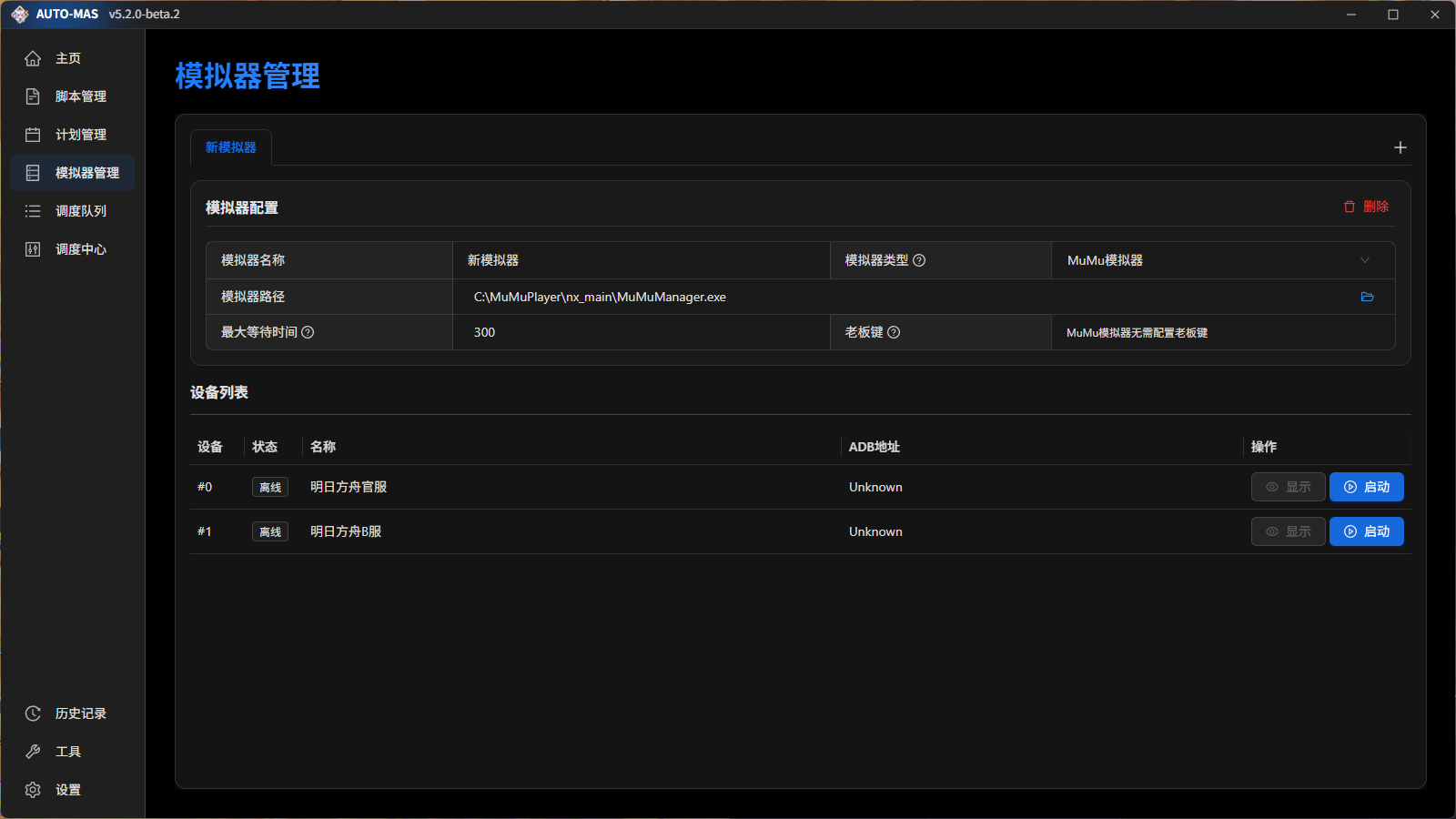
The screenshot shows example content. You need to configure it yourself.
Adding an Emulator
Just use automatic search. AUTO-MAS scans the default installation paths.
If you changed the install location when you set up the emulator, automatic search will not find it and you have to add it manually.
Filling In the Settings
| Setting | What to enter |
|---|---|
| Emulator name | Anything you like. It is only shown to you inside AUTO-MAS |
| Emulator type | Pick which emulator you use from the dropdown, such as MuMu or LDPlayer |
| Emulator path | Select the multi-instance manager, not the emulator's main program |
| Maximum wait time | How long to wait for the emulator to start. The script only launches once the emulator is up, so raise this on a slow machine |
| Boss key | In silent mode, AUTO-MAS presses this key to hide the emulator |
Common multi-instance manager paths
- MuMu 12 v4:
MuMu installation directory\shell\MuMuManager.exe - MuMu 12 v5:
MuMu installation directory\nx_main\MuMuManager.exe - LDPlayer:
LDPlayer installation directory\LDPlayer9\dnplayer.exe
No emulator yet? Pick MuMu 12 or LDPlayer
Both perform well and capture screenshots reliably, and their multi-instance manager support is the most complete, so AUTO-MAS works best with them. Other emulators may land you on problems nobody has hit before.