

MAA Configuration Guide
What is MAA?
MAA is a third-party Arknights tool that can handle repetitive tasks such as daily automation and Integrated Strategies credit farming.
For more information, see:


Install MAA
- Download the archive from
MAA Website
,MAA Repository
, orMirrorChyan
. - Extract the MAA archive to any folder.
Configure the Script
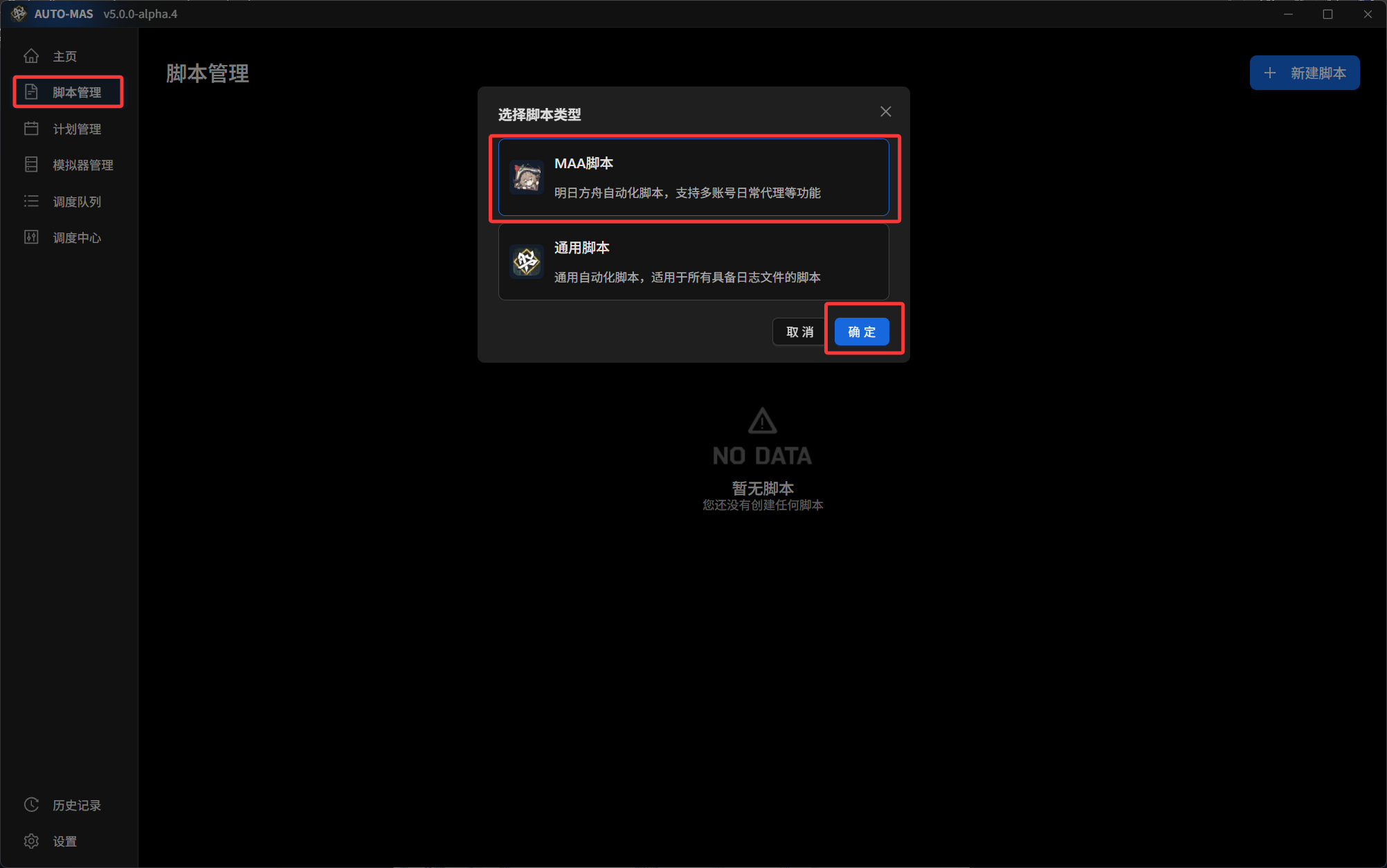
Go to Script Management, click New Script, and select MAA Script to add a script instance management page.
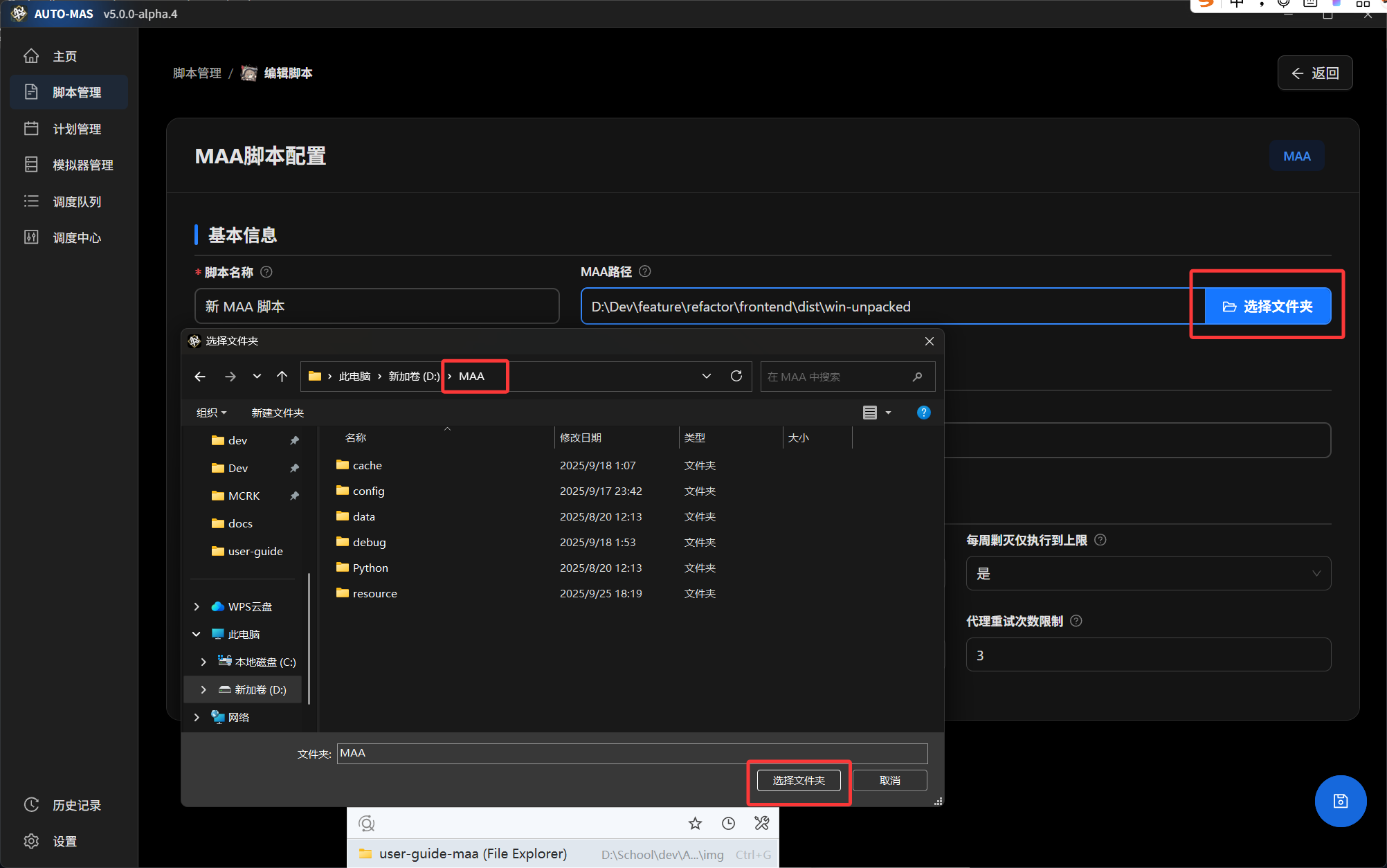
In the opened script configuration, click Select folder for MAA path, then open the directory where MAA is located.
In Emulator Management, select the emulator and emulator instance.
If no emulator appears here, complete Emulator Management configuration first.
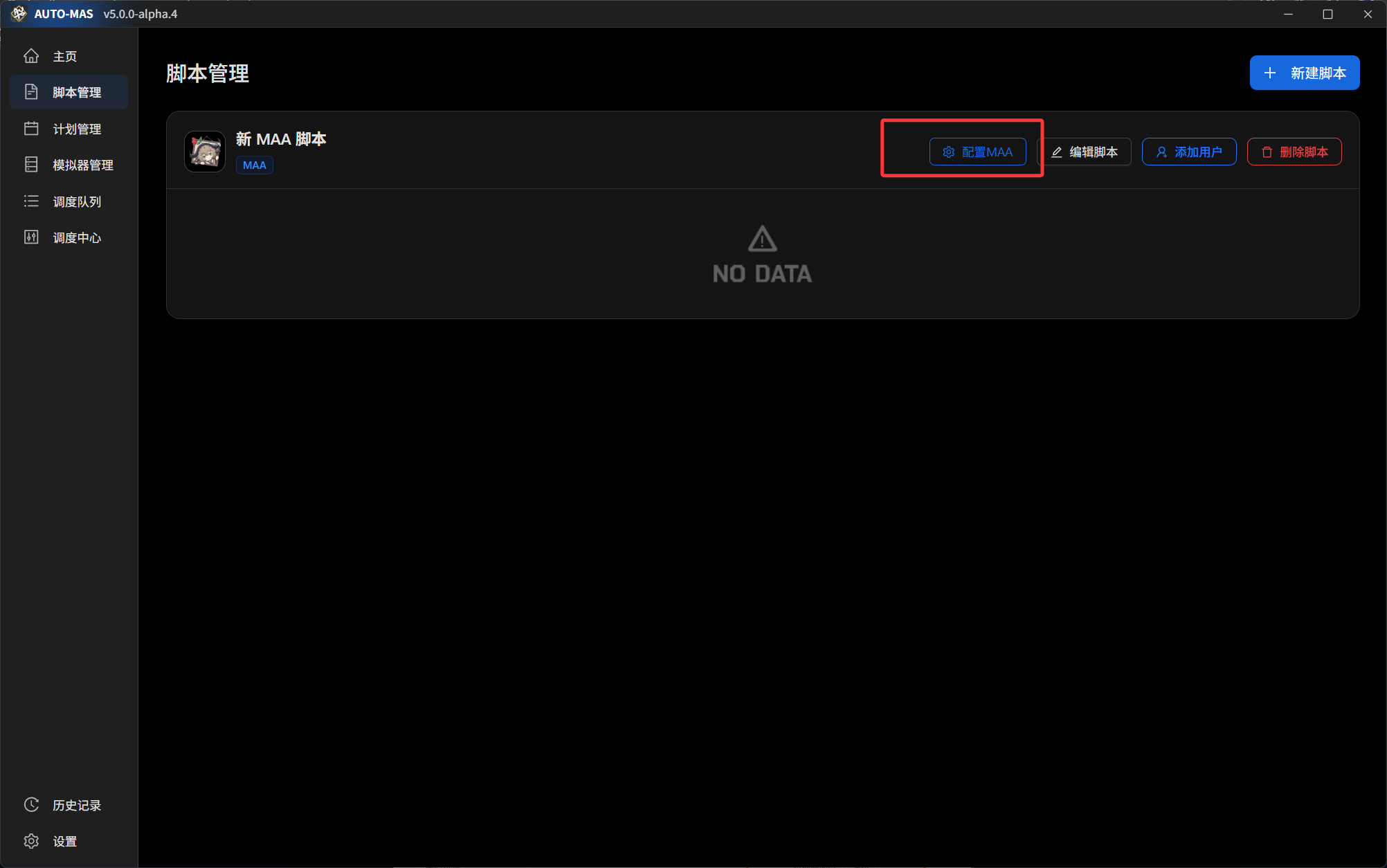
Click Configure MAA and configure it in MAA.
Manually uncheck Start MAA on boot, complete ADB connection settings, and configure other options according to your preferences.
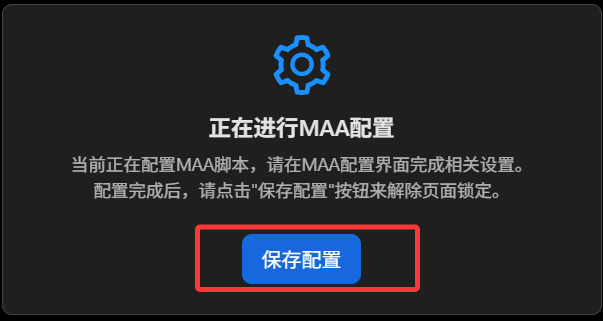
After configuration, close MAA and click Save Configuration in AUTO-MAS.
Configure Users
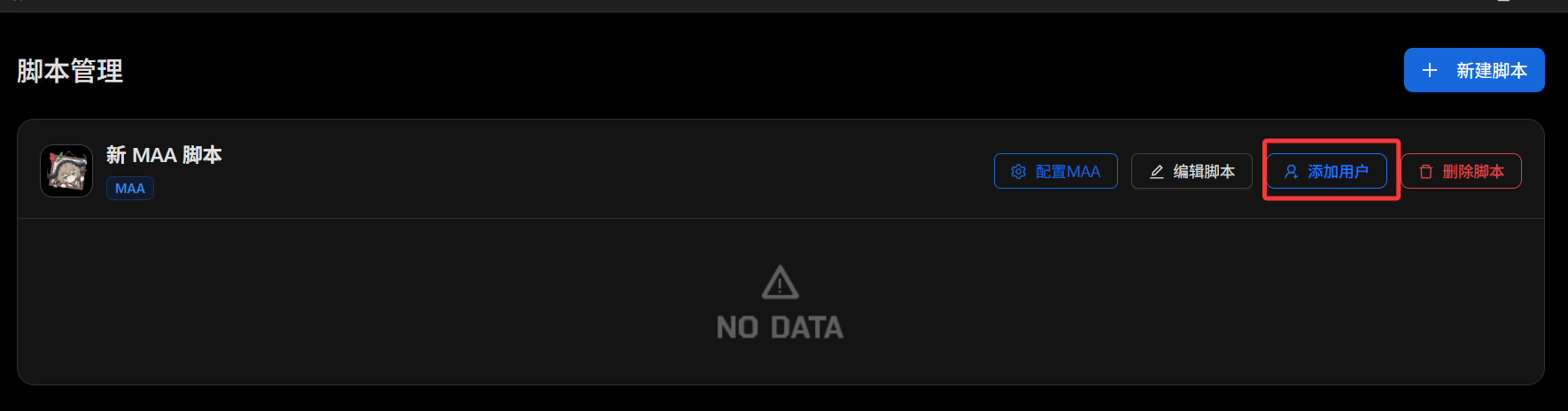
In the script table under Script Management, click Add user to add a user.
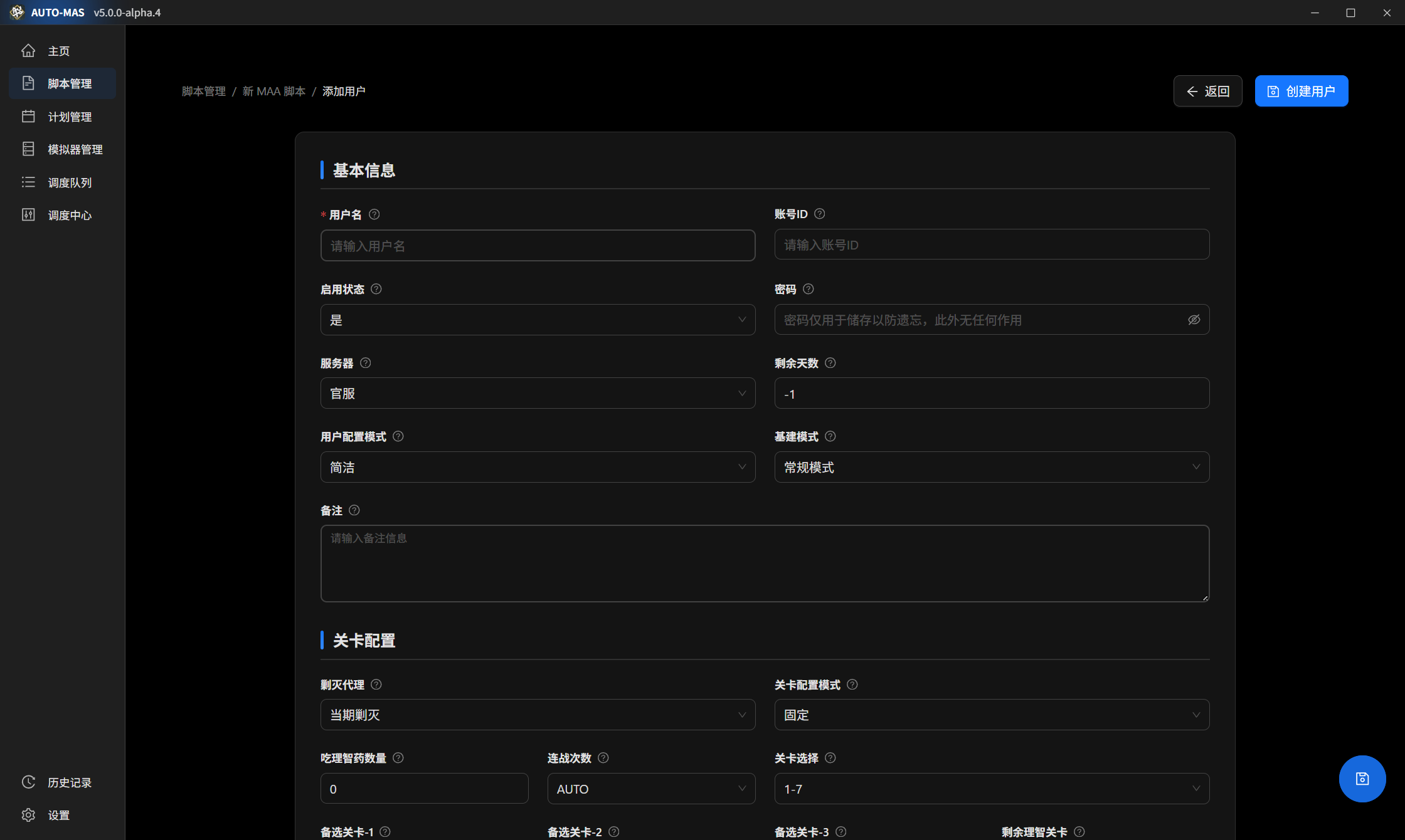
Fill in user information according to the hints on the settings card.
Note
In user configuration mode, do not forget to set specific configuration.
Account ID Tips
Because MAA's Bilibili server account switching uses OCR with limited accuracy, we recommend the following input strategy to improve recognition and switching success.
General Advice
- MAA account switching only needs to recognize one unique fragment to complete switching.
- Enter only a fragment unique to that account and avoid fragments shared with other accounts.
- Test in MAA whether the fragment can switch accounts correctly before entering it into AUTO-MAS.
- If there is only one account under the same server,
Account IDcan be left empty.
Official Server
- The official server account ID is a phone number. Usually, entering only the last four digits is enough. You do not need to enter the full phone number.
- Example:
- Account 1:
133XXXX1234 - Account 2:
133XXXX5678 - To switch to Account 1, you can enter
2,4,12,34,123,234,1234, or any other fragment unique to Account 1.
- Account 1:
Bilibili Server
- Bilibili server accounts use Bilibili nicknames, which may include Chinese, English, numbers, special symbols, Japanese, and other complex characters. OCR accuracy may be low. Therefore, do not enter the full nickname. Enter a unique fragment that is unlikely to be misrecognized, and avoid:
- Rare characters, such as
黍, which may be recognized as something else - Underscores
_, which are often misrecognized or missed
- Rare characters, such as
- Example:
- Account 1:
DLmaster_361-> entermasteror361 - Account 2:
黍的XX_1234-> enter1234,的, orXX; do not enter黍or_
- Account 1:
With these changes, account switching should become more stable.
Which MAA Settings Does AUTO-MAS Override?
During an auto-proxy run, AUTO-MAS takes over some MAA settings, so whatever you set in MAA is overwritten. Knowing which ones saves you a lot of "but I definitely set that" confusion:
- Options shown on the user configuration page always win.
- Annihilation task: only Start wakeup and Use sanity are enabled, only annihilation stages are farmed, and the details are generated automatically from your user settings.
- Daily task: runs whatever you ticked in Task configuration. The order is fixed and cannot be changed.
- Scheduled execution is force-disabled, because scheduling belongs to the AUTO-MAS queue. Behavior after task completion, behavior after MAA startup, minimization, and update settings are also adjusted automatically.
Anything not taken over follows your configuration mode: script mode uses MAA's global settings, user mode uses that user's own configuration.
Only the First Task of Each Type Is Used
If you queued two tasks of the same type in MAA, for example two Use sanity tasks, AUTO-MAS uses only the first one. If there are none, defaults apply.
Weekly Plans: Farm Different Stages Each Day
Want to farm EXP midweek and credits on the weekend? A weekly plan sets stages day by day.
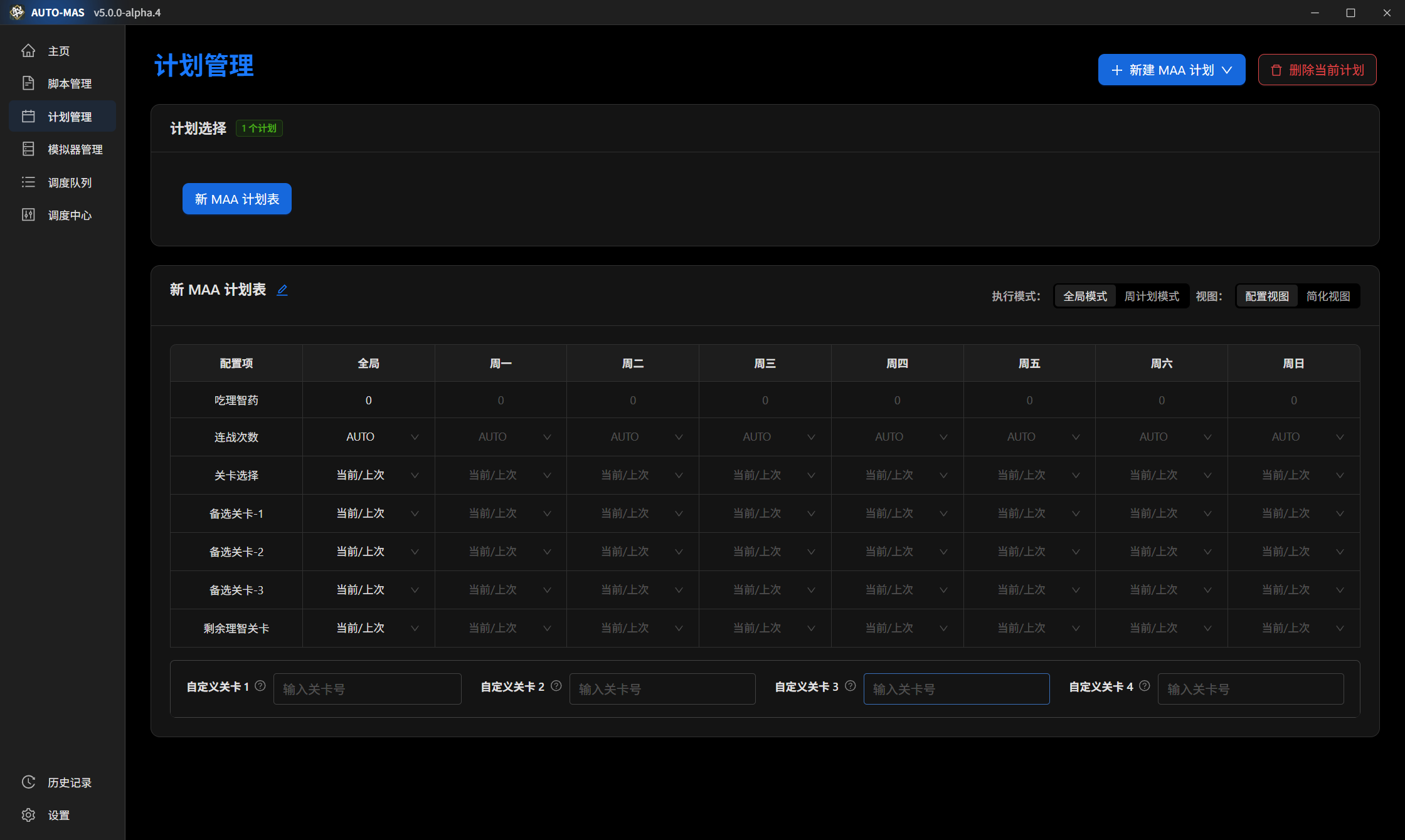
- Switch the configuration mode to weekly plan mode, then fill in what to farm each day. If the table takes up too much room, switch to simplified view for an editing experience similar to mower.
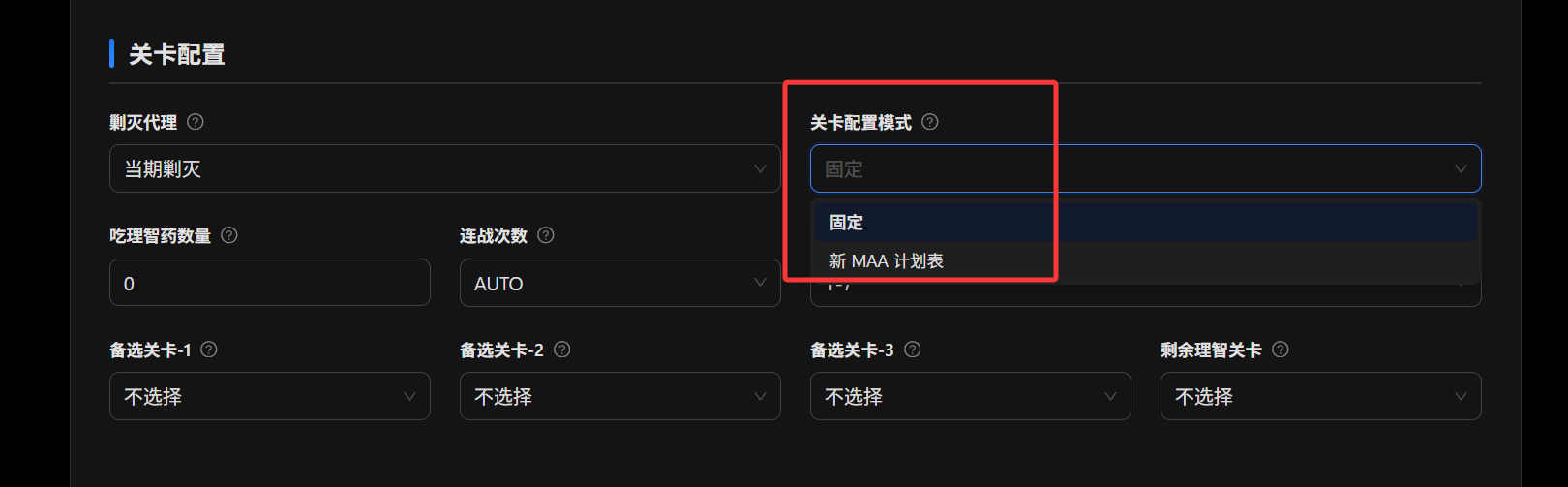
- Back on the MAA user page, select your plan under stage configuration mode.
Skland Automatic Check-In
Note
AUTO-MAS processes check-in requests locally and does not upload tokens to third-party servers.
Automatic check-in has risks. AUTO-MAS is not responsible for any results caused by automatic check-in. Using this feature means you agree to bear the related risks yourself.
Get Hypergryph Account Login Credentials
Log in to the Skland web page.
Visit this URL.
It returns information similar to:
json{ "code": 0, "data": { "content": "<Token>" }, "msg": "The API returns the login credential of your Hypergryph account. This credential can be used by the Hypergryph account system to verify login validity. Leaking login credentials is extremely dangerous. For account security, do not disclose this credential to anyone in any form." }Enter
<Token>into the corresponding option tab in the app.If you need to obtain Hypergryph account login credentials for multiple accounts in a row, clear browser cookies to remove login state. Logging out directly from the web page will make the token expire.
Reminder
Do not enter the quotation marks around content, and do not enter the entire returned page content into the option tab.